Meeting notes that write themselves.
Wallflower sits quietly on your Mac or PC while you talk. It writes down everything that
is said, including the people on the call, and hands you the summary the moment you stop.
Anything you were asked to do, you can pass on with one click.
Free. v0.14.0 · All versions · It updates itself
when a new one is out. You bring your own transcription key. More on that at the bottom.
Windows warns about an "unknown publisher" the first time, because the installer is not
signed yet.
It hears everyone on the call
Wallflower listens to your microphone and to the sound coming out of your computer at the same time. So the people on the Zoom, Teams or Meet call get written down too, even while you wear headphones. The words appear as they are spoken.
Turn a sentence into a task
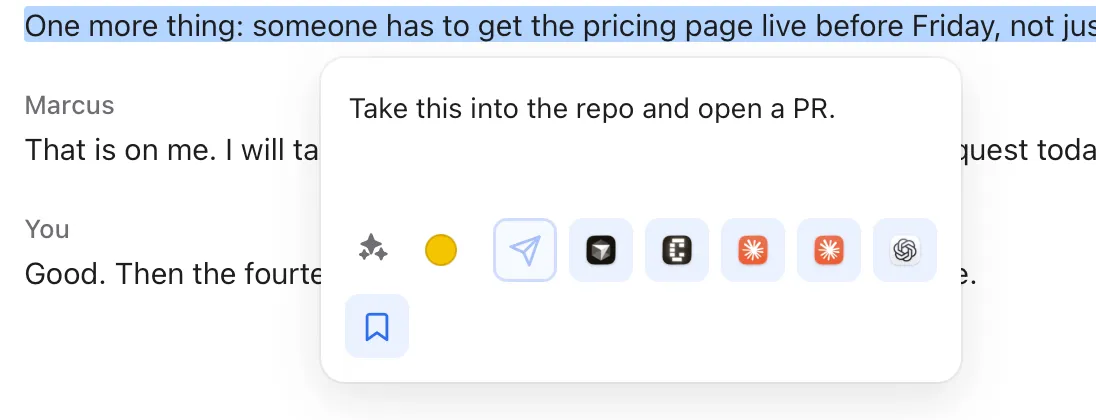
Highlight anything that was said, type what you want done with it, and send it off to Claude, Cursor, Codex or your own assistant. Or keep it where it is. Wallflower marks the line in colour and keeps your note with it.
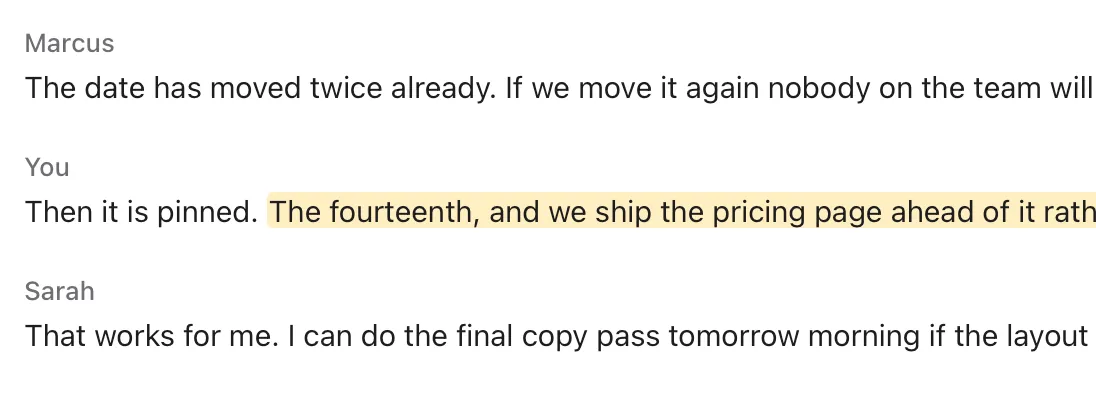
It spots what you were asked to do
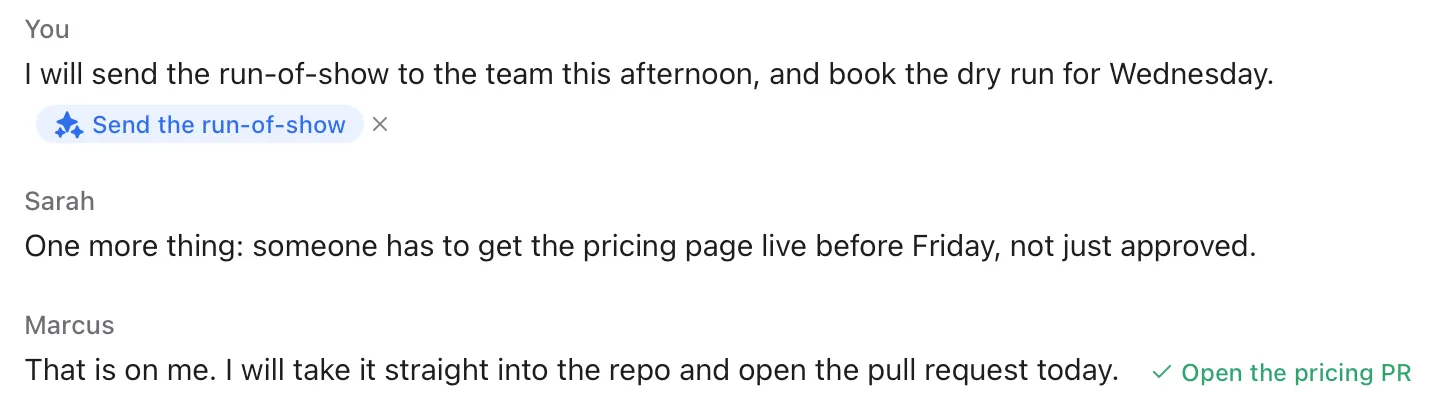
While you talk, Wallflower watches for the moments where someone asks for something. It waits until the person has finished the thought, then puts a small button next to the line. One click sends the task.
The summary is ready when you stop
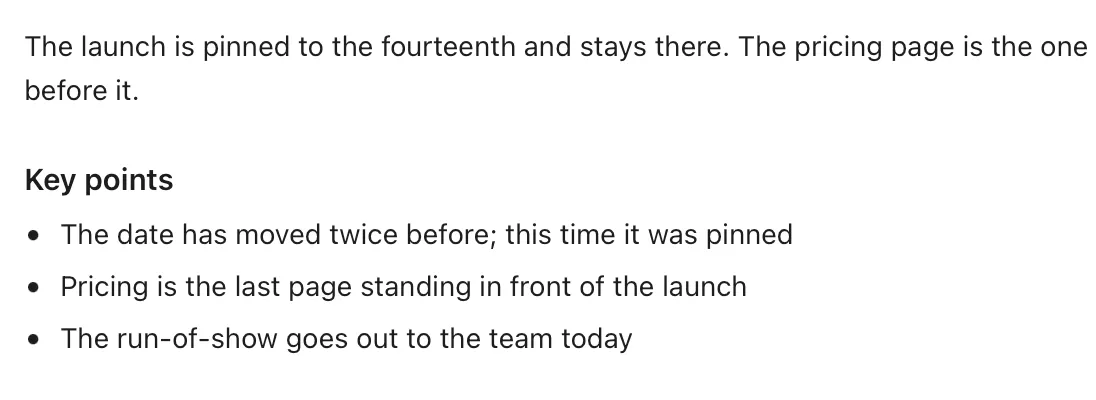
A short recap, the main points, what was decided, and who said they would do what. It is written in the language the meeting was held in. The recording is kept as well, so nothing is lost if the connection drops.
Hand it to the assistant that already knows you
A lot of people now have their own AI assistant, a Grok bot wired into
their calendar, their email and their code. Wallflower is built to talk to it. The button
is there from the first launch. Tell Wallflower your bot's address and it becomes the one
you press by default.
- 1
Pick the sentence
Highlight what was said, or use the line Wallflower already flagged for you. Then say
what should happen, the way you would say it to a colleague.
- 2
Wallflower sends it over
The sentence and your instruction go straight to your bot. The key that lets it in is
kept in the Keychain, where your computer keeps its passwords.
- 3
Your bot does the work
It already knows who you are and can reach your tools. All it needs from the meeting
is the request itself, who said it, and a little of what was said around it.
What arrives at your bot
{
  "text": "someone has to get the pricing page live before Friday",
  "speaker": "Sarah",
  "note": "Take this into the repo and open a PR.",
  "context_before": "Marcus: Layout is settled...",
  "context_after": "Marcus: That is on me...",
  "meeting": "Launch planning",
  "timestamp": "2026-09-21T09:47:00Z"
}
You decide what that message looks like. This is the default body, and you can change it.
The address must start with https://, or point at localhost
while you are still building the bot. And if the message does not get through, Wallflower
tells you instead of pretending it sent.
Your meetings stay yours.
Wallflower runs on your own machine, and the recordings and the text are kept there. There
is no account to make and no server of ours in the middle. If you want your meetings on
your iPhone too, they travel through your own iCloud. If you would rather they did not,
turn it off.
Two things you provide yourself: a key from Soniox,
which does the listening, and one from Anthropic
if you want the summaries. Your audio goes to Soniox to be transcribed, and the transcript
goes to Anthropic for notes and suggestions. You pay those two directly, at their prices,
and the keys are kept in your Keychain. After that, open Wallflower, press record, and
forget about it.
 Wallflower